NeoX File Sync |
NeoX File Sync
 ContentsOverview
This page describes working with project and storage files in NeoX.
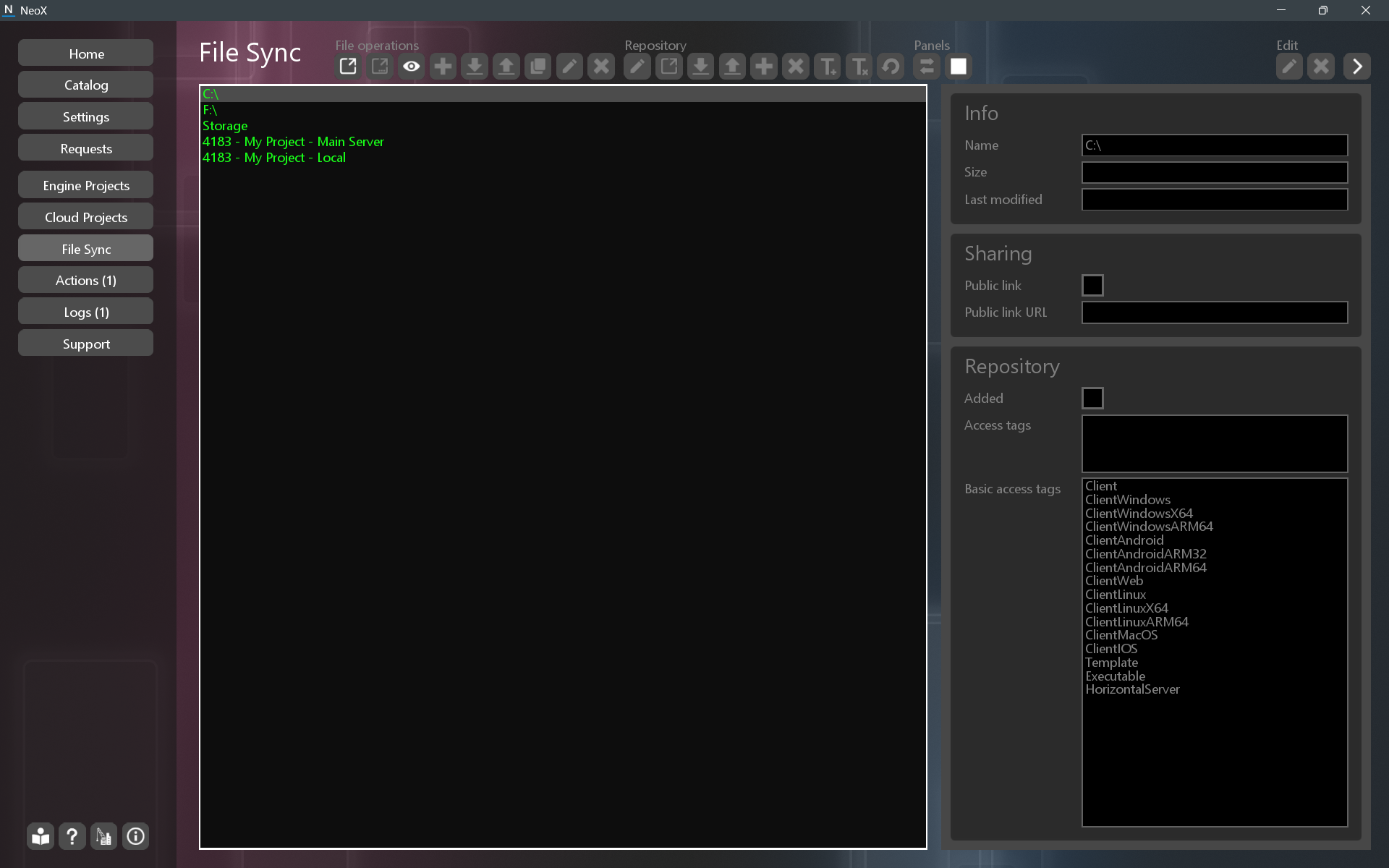
The File Sync page is a file manager. The page includes a list, a toolbar, and a settings panel.
The list shows local drives, Storage, and your projects. Operations in File Sync fall into two categories: working with files, and working with the project repository.
 File Operations
The first category is file operations. You can copy files, rename, delete, create folders. For Storage and project files on the server, you can download from and upload to your local machine.
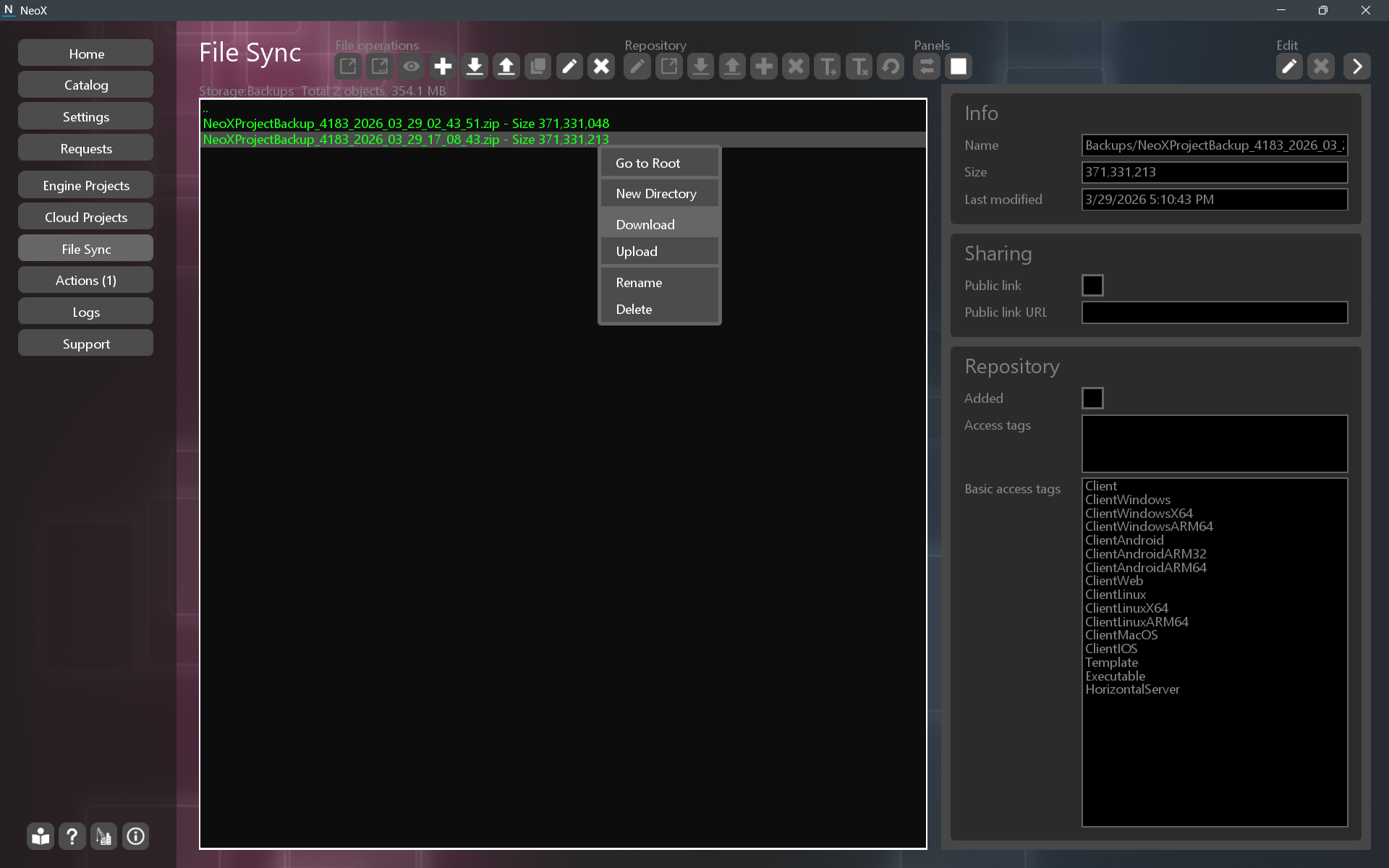
The screenshot shows the contents of the Backups folder in Storage. The context menu actions are duplicated in the toolbar.
 Repository Operations
The second purpose of File Sync is to work with project repositories. This is the main way to synchronize the server’s files with a local copy on your machine.
Storage File SharingThis feature is currently unavailable.
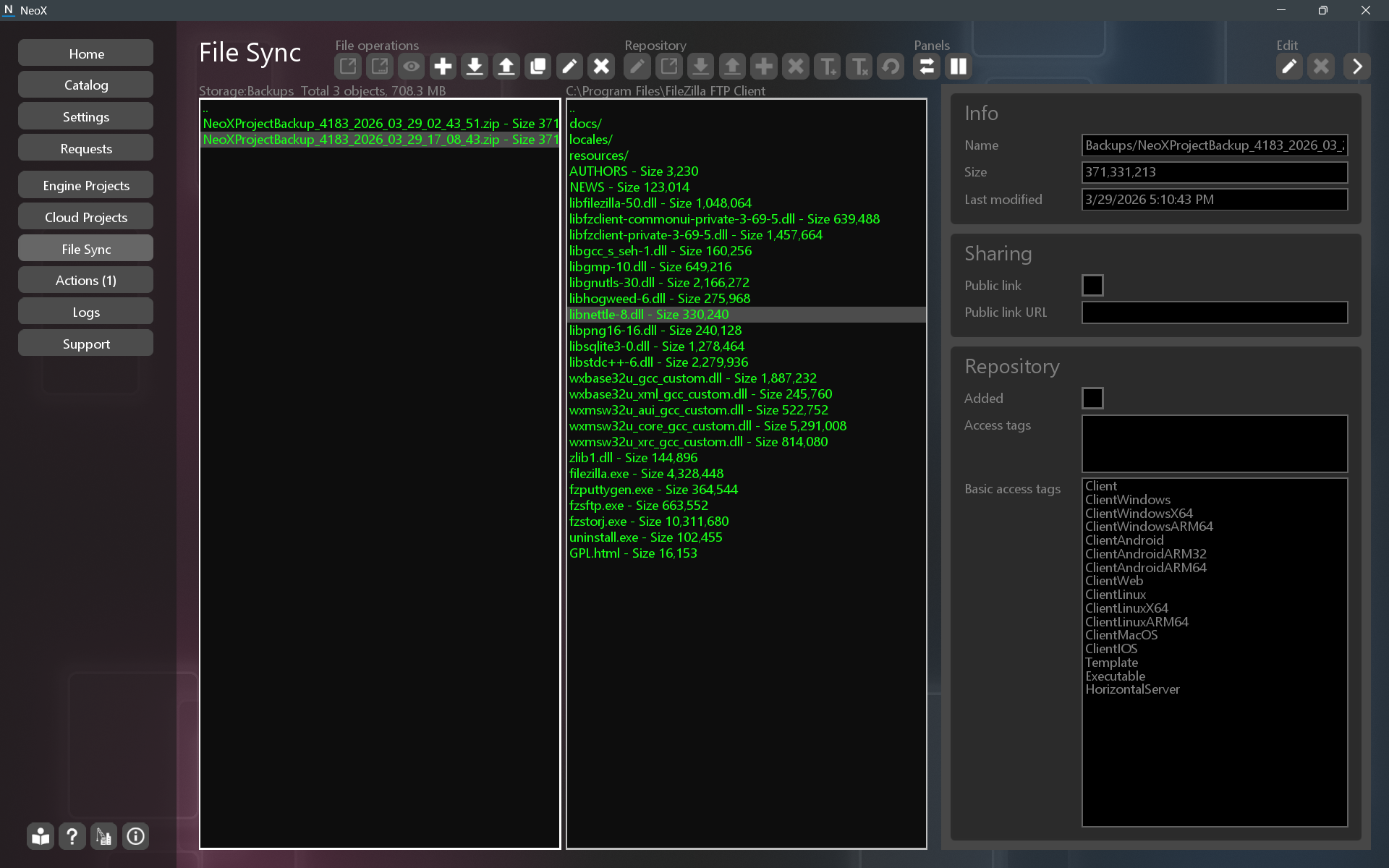
Two-Panel ModeFile Sync supports a dual‑panel layout, enabled from the toolbar with the  (Enable the two panel mode) button.
In two‑panel mode, you can copy files between the left and right panels using the  (Copy selected files to the directory of other panel) button or by pressing F5.
 Toolbar
The toolbar provides access to file operations, repository tools, and two‑pane mode settings.
File operations:
| Icon | Description |
|---|---|
 | Open the selected file or directory in an external app. |
 | Open the selected file with selection target app. |
 | Show the properties of the selected file or directory. |
 | Create a new directory (Insert, F7). |
 | Download the selected file. |
 | Upload a file from your computer. |
| Copy selected files to the directory of other panel (F5). |
 | Rename selected file or directory (F6). |
 | Delete selected files or directories (Delete, F8). |
Repository:
| Icon | Description |
|---|---|
| Change the directory path of the local repository. |
| Open the directory of the local repository. |
| Get all updates from the server repository to the local repository. |
| Push all updates from the local repository to the server repository. |
| Add the selected files and directories to the repository. |
| Delete the selected files and directories from the repository while keeping the files. |
 | Add access tags to the selected files and directories in the repository. |
 | Delete access tags from the selected files and directories in the repository. |
 | Revert the changes in the local repository for the selected files and directories. |
Panels:
| Icon | Description |
|---|---|
 | Switch the panels with each other. |
| Enable the two-panel mode. |
Item settings:
| Icon | Description |
|---|---|
| Edit selected items. |
| Cancel editing. |
 | Configure the visibility of the properties panel. |
See also